Create and Link Deals with Listings
Loft allows you to connect Deals and Listings in multiple ways. You can create a new Deal directly from an existing Listing, or link an existing Deal (such as a Deal created through AI) to an existing Listing to keep related records connected.
Creating a Deal from a Listing
Once your brokerage has sold one of its listings, you can easily create a deal directly from the listings.
This carries over key listing information and helps keep your transaction organized.
- Log in to Loft.
- Navigate to Brokerage Name > Listings.
- Open the listing you want to convert.
- Click Create Deal.
- Choose whether to enable Copy documents from this listing to the new deal to transfer all listing documents to the deal.
- Click Create Deal.
If a listing and a deal were created separately for the same property, they won't be linked automatically.
Since deals can only be linked to a listing when they're created, you'll need to void the manually created deal and create a new one directly from the listing to establish the connection.
Enable "Copy documents from this listing to the new deal" to automatically copy all documents from the listing to the newly created deal.
if selected, all listing documents will be copied to the new deal.
To keep the listing and deal connected, always create the deal directly from the listing.
Link an Existing Deal and Listing
If you've already created a deal or a listing separately, you can link them together at any time. This allows you to easily navigate between the related records within Loft.
Link Deal to the Listing
1. In the Deal Summary Section
2. Search for and select the existing Listing. If the Listing was already created from the Deal, it will be automatically linked.
You can also search for and link the Deal to an existing Listing if the records were created separately.
3. Once linked, you can open the related listing directly from the deal.
Example:
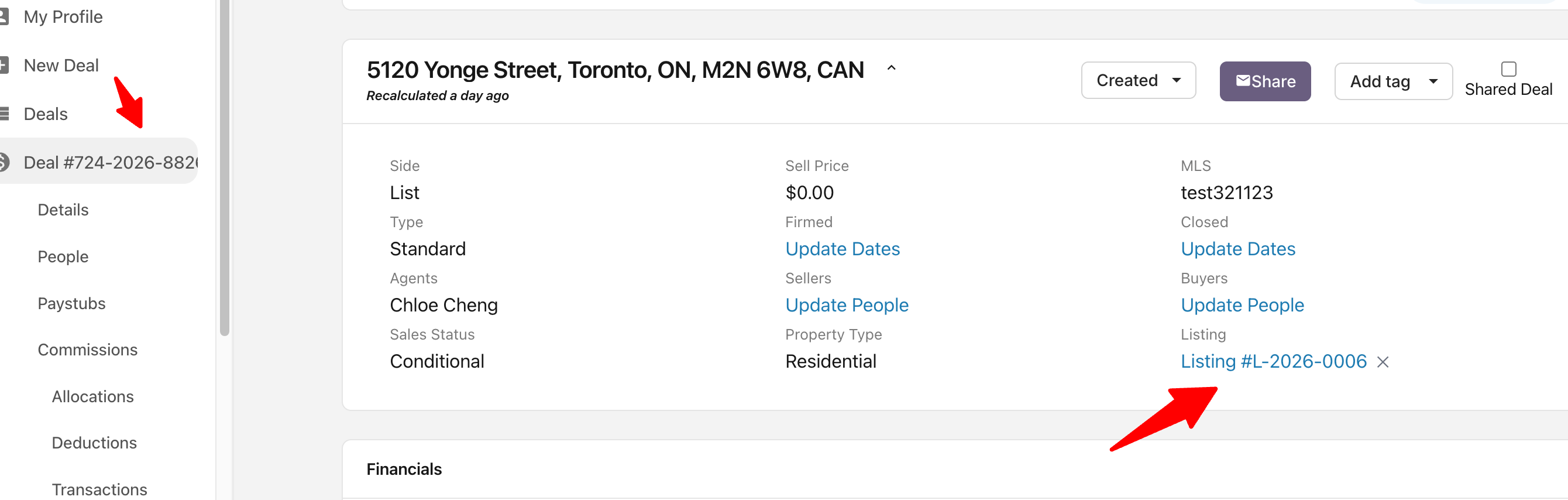
Click "Listing #L-2026-0006" to open the existing Listing page.
Link Listing to the Deal
1. In the Listing Deal Summary Section
2. Search for and select the existing Deal. If the Listing was created to the Deal, it will be automatically linked to that deal.
You can also search for and link the Listing to an existing Deal if the records were created separately. For example, if a Deal was created by AI, you can link it to an existing Listing. Likewise, if you have an existing Listing, you can link the AI-generated Deal to that Listing to keep both records connected.
3. Once linked, you can open the related Deal directly from the Listing.
Example:
Click Deal "724-2026-882601021 - 5120 Yonge Street" will bring you back to the deal.
Note: Linking can be initiated from either the Listing or Deal page. Once the records are linked, the relationship is reflected on both records, allowing you to quickly navigate between them.